Picture a student in Ho Chi Minh City who has narrowed a U.S. study plan down to six universities. Each school publishes public videos on YouTube and Facebook: campus tours, admissions information sessions, student life vlogs, and short explainers about housing and financial aid. The student wants to watch them on a long bus ride, on a weak dorm connection, and again during a family meeting where everyone is gathered around one laptop. Streaming every time is not realistic. Saving the public clips for personal viewing is.
This is an illustration, not a real customer story. It shows where a simple, free downloader fits into the research phase of studying in the United States, and where it does not. The tool in question is a free downloader that works in the browser, described here based on its public pages as read on 13 November 2026.
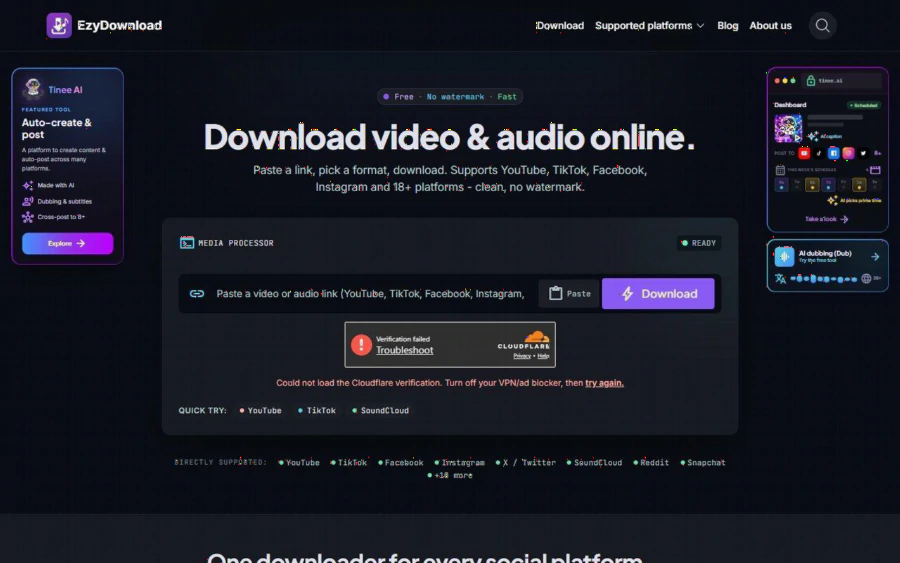
EzyDownload homepage with a link box, a Download button and a list of directly supported platforms
Why offline copies help during school research
Choosing a university abroad is a slow decision. Families compare tuition, location, climate, class size, and the feel of the campus. Video carries much of that feel, and the best clips are often scattered across several platforms.
A few habits make saved copies useful:
- Watch tours at normal speed once, then scrub back to the parts that matter, such as the dorm room or the library.
- Keep information sessions on the laptop so parents can listen to the financial aid section without hunting for the timestamp.
- Save only the audio of a long webinar and play it while commuting, then return to the video for the slides.
None of this requires anything exotic. It requires a tool that does not get in the way.
What EzyDownload offers on its public site
According to its homepage, the flow is simple: paste a link, pick a format, download. The site lists YouTube, TikTok, Facebook, Instagram, X and SoundCloud as directly supported, with Reddit, Snapchat, Threads, Tumblr, Pinterest and others as compatible, for 18 platforms in total.
On quality, the page says every available option is listed so you choose, instead of one fixed output. Video goes up to 4K (2160p) at 60 fps when the source offers it, and audio can be extracted as MP3 or M4A up to 320 kbps. It also runs in a browser on desktop, iOS and Android, with no app or extension, and the page states that it does not store files on its servers and never asks you to log in.
Pricing is the easiest part to describe. The site says it is free, with no subscription and no sign-up.
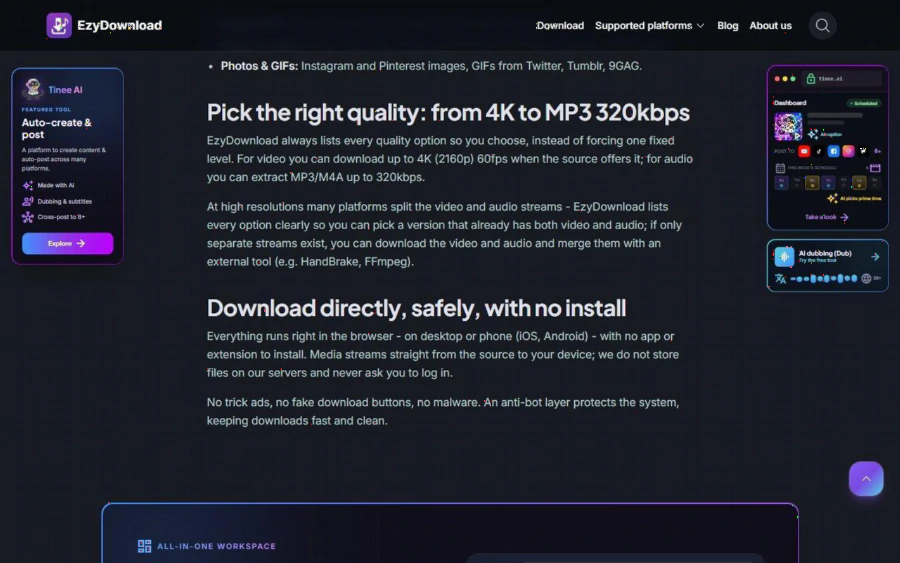
A section of the EzyDownload page explaining quality options from 4K to MP3 320 kbps
A walk through the scenario
Here is how the student's weekend might go, step by step.
On Friday evening, the student collects six links from each school's official channel: one campus tour and one admissions session per university. The first test is simply whether the clip is public. If a video needs a login or sits behind a paywall, it is not a candidate, and the site itself says private and login-only content will fail.
Next, the student pastes a link and looks at the listed qualities. For a campus tour, 720p is plenty on a laptop and keeps the file small, which matters when storage on a shared family computer is limited. For the admissions sessions, the student picks audio only, so the files are tiny and easy to play on a phone.
Finally, the student names each file with the school and topic, for example "state-university-housing-session", and drops it into one folder. By Sunday the family can compare all six schools without buffering circles.
Strengths and limits, stated plainly
The strengths are real. It is free, it needs no account, the quality list is visible before you commit, and the platform coverage is wide enough for a typical research session.
The limits matter just as much.
First, it handles public media only. Private accounts, login-only posts and DRM content are not processed, according to the site's own description. Do not expect it to help with paid course platforms or member-only webinars.
Second, quality depends on the source. If a university uploaded a 480p clip, no downloader can make it sharper. The 4K ceiling is only reached when the original offers it.
Third, at high resolutions many platforms split video and audio into separate streams. The page explains that you may need an outside tool such as HandBrake or FFmpeg to merge them if no combined version is listed. For a casual user, picking a lower resolution with both streams already combined is the simpler route.
Fourth, the page showed a Cloudflare verification message when I opened it, with advice to turn off a VPN or ad blocker and try again. Students who browse through a VPN may hit this, so it is worth knowing before a deadline weekend.
Fifth, the homepage also carries promotional panels for a separate AI product and a community sponsor link in the footer, which the site says it does not endorse. They are separate from the downloader, but read the page before clicking anything.
Respect the rules of the videos you save
A study abroad family is also learning how American institutions treat copyright and academic honesty, so it is a good moment to model good habits. Saving a public clip for personal viewing is different from reposting it, editing it into your own content, or using it in an application as if it were yours. If you are not sure about a clip's terms, check the platform's rules and the uploader's page, or simply keep the link instead of the file.
For official admissions decisions, always rely on the university's own website for deadlines, tuition and visa guidance. Videos are a feel-good supplement, not a source for requirements, and old clips can be out of date.
Who should use it, and who should skip it
Use it if you are a student or parent comparing schools and want a handful of public clips available offline, in a quality you choose, without creating yet another account. It also suits advisors who send families a short list of official videos before a consultation.
Skip it if you need to save anything behind a login, if your school or workplace forbids downloading media, or if your whole workflow is already handled by a licensed tool your institution provides.
How to start in five minutes
1. Pick one school and find its official campus tour or information session on YouTube or Facebook.
2. Copy the link and open the downloader in your browser.
3. Paste the link and read the list of qualities and formats.
4. Choose 720p video for a tour, or MP3 for a long talk, then download.
5. Rename the file with the school and topic, and store it in a single folder.
Run this once with a clip you do not care about. If the result is clean and the file plays, repeat it for the rest of your list. If something fails, the likely cause is a private video, a blocked verification step, or a split stream, and each of those has a simple fix described above.
Good school research is mostly about reducing friction so you can focus on the real question: where will I be happy and succeed? A reliable way to keep the best public videos close at hand is a small piece of that, and now you know exactly what it can and cannot do.